The short version
Goodreads lets you export your library as a CSV file, but the export option is not available in the Goodreads mobile app.
Sign in on a computer, open My Books, choose Import and export under Tools, then select Export Library. Goodreads will prepare a file containing your books and reading data without changing anything in your account.
If you are already signed in, you can also open the Goodreads Import and Export page directly.
How to export your Goodreads library
1. Open My Books
Sign in to Goodreads in a desktop browser and select My Books from the navigation at the top of the page.
If you are using a phone, open Goodreads in Safari, Chrome, or another browser and request the desktop version of the site. You cannot export your library from the Goodreads app.

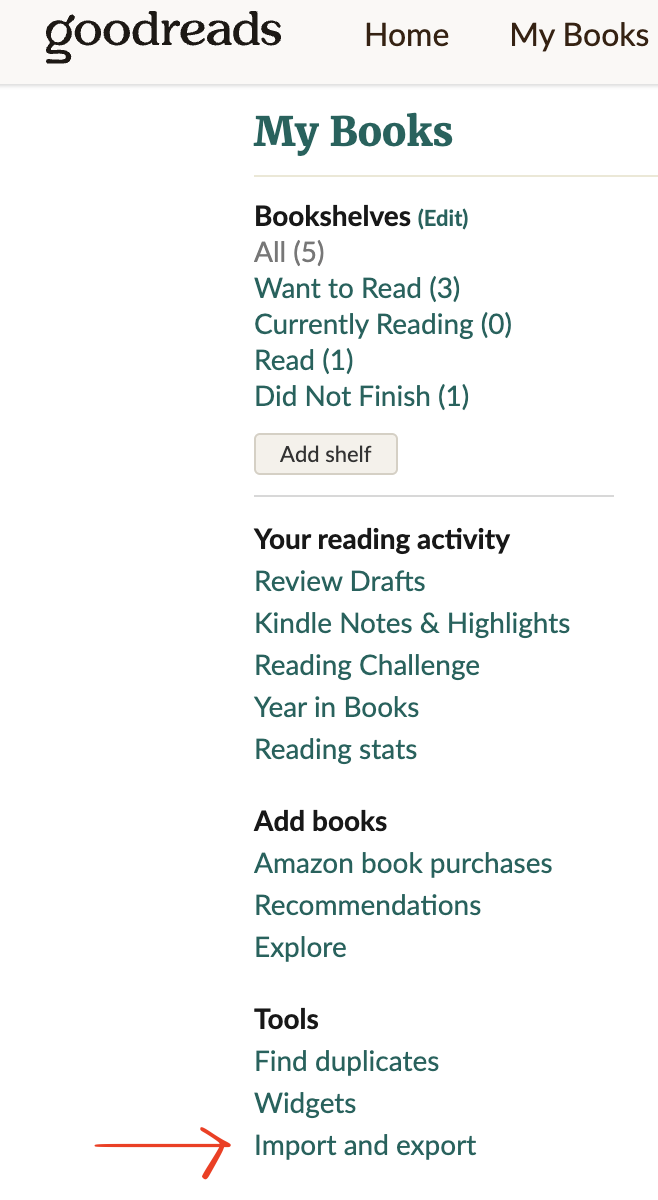
2. Select Import and export
On the My Books page, look beneath your bookshelves in the left sidebar. Under Tools, select Import and export.
3. Select Export Library
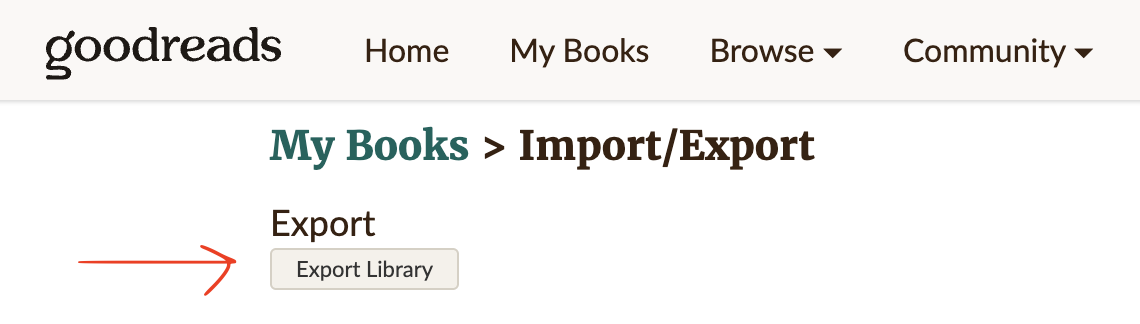
Click Export Library. Goodreads will begin preparing a fresh copy of your library. Large libraries can take a little longer, so the file may not download immediately.
4. Download the completed export
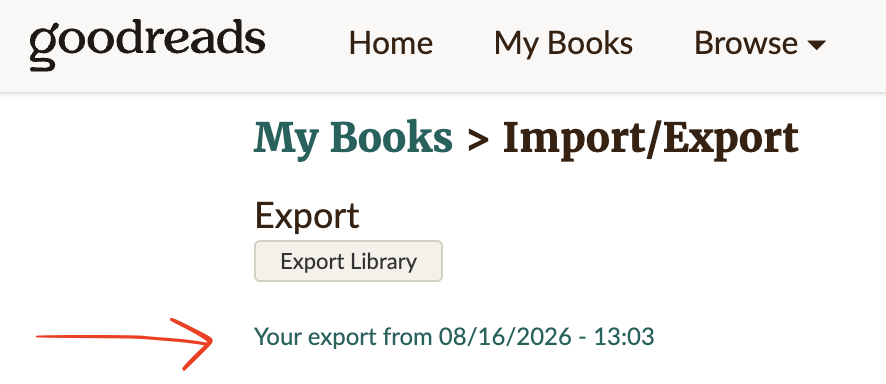
When the export is ready, a dated link will appear on the same page. Select it to download the CSV. The file is normally named something close to goodreads_library_export.csv and will usually be saved in your Downloads folder.
Keep an unchanged copy of the CSV you downloaded. Opening and saving it in Excel or another spreadsheet app can alter details such as ISBNs and dates. When moving your library to another service, import the original file.
What is included in the export?
Each row in the CSV represents a book from your Goodreads library. The file normally contains:
| Information | Goodreads columns |
|---|---|
| Book and edition | Title, Author, Additional Authors, ISBN and ISBN13 |
| Your reading status | Exclusive Shelf and Bookshelves |
| Ratings | My Rating and Average Rating |
| Dates | Date Added and Date Read |
| Edition details | Binding, Number of Pages and publication years |
| Your writing | My Review and Private Notes |
| Other library data | Read Count and Owned Copies |
Some fields may be blank, particularly for older or unusual editions. The CSV also records the edition saved in Goodreads, which may not be the same edition you currently own.
Not every reading app imports every column. Reviews, private notes, custom shelves and complete reread histories are the fields most worth checking before relying on another app as your only library.
Importing the CSV into Pick Up
Pick Up accepts the original Goodreads CSV directly. You do not need to convert it to Excel or rename any columns.
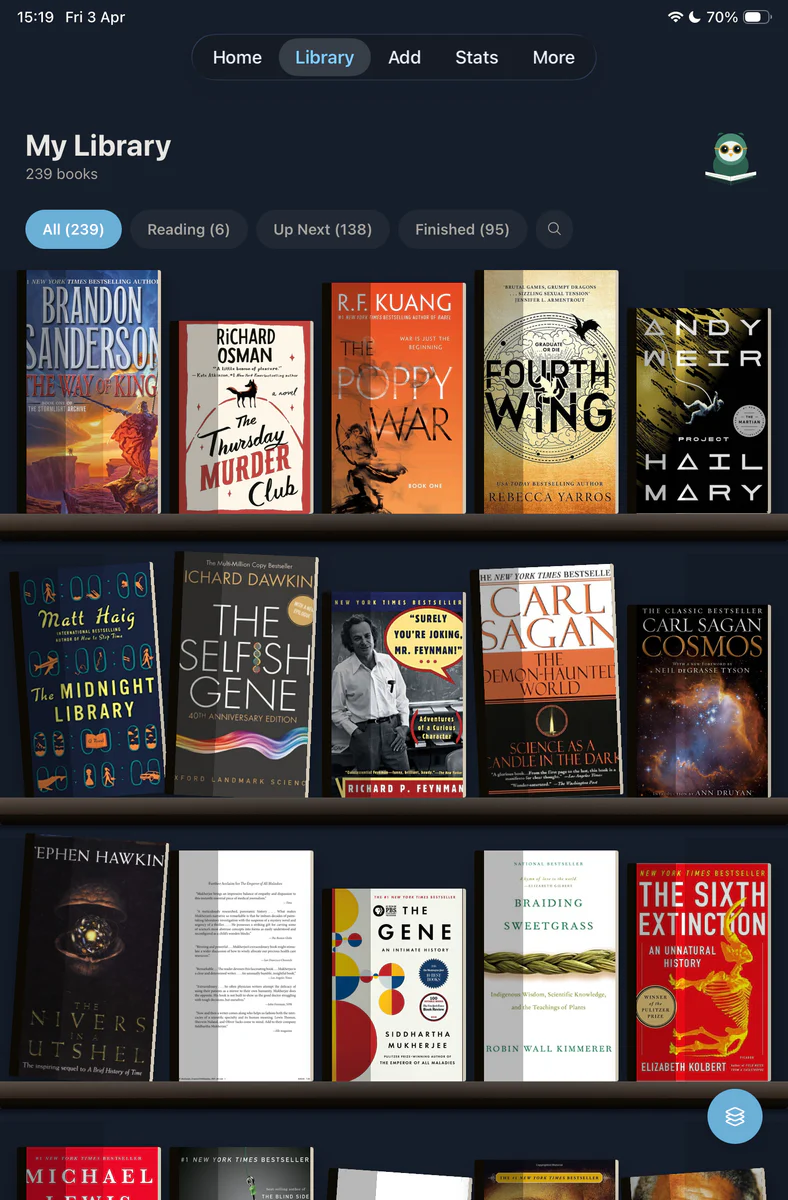
If the file was downloaded on a computer, move it somewhere your phone can access, such as iCloud Drive, Google Drive, Dropbox, AirDrop or email. Then:
- Open More in Pick Up.
- Scroll to Import Library.
- Choose Goodreads.
- Select the original CSV.
- Review the import summary when it finishes.
Pick Up imports the core library information, including titles, authors, ISBNs, page counts, publication years, formats, reading status, ratings and available dates. Goodreads reviews, private notes and custom shelves remain in the CSV, but they are not currently recreated as Pick Up reflections or collections.
After the import, compare the total with your Goodreads library and check a few finished, currently-reading and to-read books. That is usually enough to catch an incorrect status, missing date or mismatched edition before you continue using the imported library.
Frequently asked questions
Can you export your Goodreads library as a CSV?
Yes. On the Goodreads desktop website, open My Books, choose Import and export under Tools, then select Export Library. Goodreads prepares a CSV file containing your library data.
Can you export your Goodreads library from the app?
No. The Goodreads mobile app does not include a library export option. Use the desktop website or open Goodreads in a mobile browser and request the desktop version of the site.
What does a Goodreads export contain?
The CSV normally contains book titles, authors, ISBNs, ratings, shelves, dates, reviews, private notes, page counts, publication details and read counts. Another app may import only some of those fields.
Does exporting your Goodreads library delete anything?
No. Exporting creates a snapshot of your library. It does not remove books, change shelves or close your Goodreads account.
Can you import a Goodreads CSV into Pick Up?
Yes. Move the original CSV to your phone, then open Pick Up and go to More, Import Library, Goodreads. Select the file and review the import summary when it finishes.